Enable TPM 2.0 & Secure Boot on ASRock
This guide walks you through ASRock Phantom Gaming, Steel Legend, and Taichi boards at a calm pace. You will turn on two security settings that Windows and many games look for. TPM options and Secure Boot sit on different tabs—follow each step once, and nothing is final until you save.
Quick Reference
Last verified · 10 Sept 2026Difficulty & Time
BIOS Vendor
AMI Aptio V (ASRock UEFI)
CPU Support
Intel 300 Series, Intel 400 Series, etc.
TPM Terminology
Secure Boot Location
Security → Secure BootSupported Chipsets
On older Intel boards, Intel PTT is under Security → Intel Platform Trust Technology, or sometimes Advanced → Chipset Configuration.
On 600-series and newer boards, Intel PTT is usually already enabled under Security.
On AM4 boards, use Advanced → CPU Configuration → AMD fTPM switch (AMD CPU fTPM or Disabled).
On AM5 boards, TPM is under Security → Security Device Support.
Before you begin
Don't worry if your BIOS looks slightly different. Manufacturers often update colours and layouts, but the menu names are usually the same.
Enter BIOS
Turn the PC on and tap F2 or Del until you enter BIOS (your motherboard's settings menu). If Windows starts instead, restart and try again a little sooner.
Switch to Advanced Mode
If you land in EZ Mode, press F6 once to open Advanced Mode. You need the full menu for the steps below.
Intel steps (Intel PTT)
Enable Intel PTT (TPM 2.0)
Open the Security tab. TPM 2.0 is a small security feature Windows checks for; on Intel ASRock boards it is labeled Intel Platform Trust Technology. Set it to Enabled.
Disable CSM
Open Boot → CSM (Compatibility Support Module). CSM is an older compatibility layer; Secure Boot needs it turned off. Set CSM to Disabled.
Important: on some ASRock boards, after you disable CSM you must press F10, reboot, and re-enter BIOS before Secure Boot can be changed from Disabled to Enabled.
Enable Secure Boot
Open the Security tab and select Secure Boot. Secure Boot is a check that only trusted software is allowed to start Windows.
- Set Secure Boot to Enabled.
- Set Secure Boot Mode to Standard.
- If you see a User Mode prompt, select Install default Secure Boot keys.
Save & Exit
Press F10 and select Yes to save and reboot into Windows.
AMD steps (AMD fTPM)
Enable AMD fTPM
TPM 2.0 is a small security feature Windows checks for; on AMD ASRock boards it is labeled AMD fTPM.
- On AM4, open Advanced → CPU Configuration, then set AMD fTPM switch to AMD CPU fTPM.
- On AM5, open Security → Security Device Support instead and enable it.
Disable CSM
Open Boot → CSM (Compatibility Support Module). CSM is an older compatibility layer; Secure Boot needs it turned off. Set CSM to Disabled.
Important: on some ASRock boards, after you disable CSM you must press F10, reboot, and re-enter BIOS before Secure Boot can be changed from Disabled to Enabled.
Enable Secure Boot
Open the Security tab and select Secure Boot. Secure Boot is a check that only trusted software is allowed to start Windows.
- Set Secure Boot to Enabled.
- Set Secure Boot Mode to Standard.
- If you see a User Mode prompt, select Install default Secure Boot keys.
Save & Exit
Press F10 and select Yes to save and reboot into Windows.
Screenshots
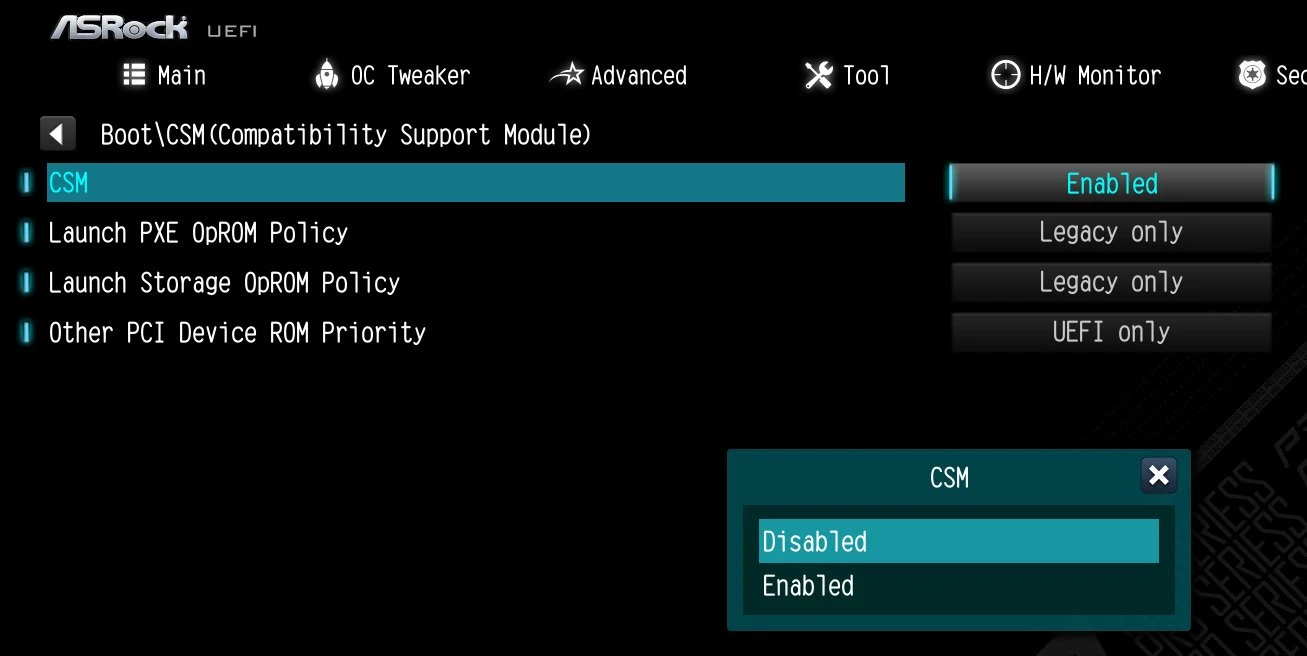
Secure Boot settings in ASRock UEFI
Things to watch for
Troubleshooting
tpm.msc to confirm TPM 2.0 is ready. Then run msinfo32 and check that Secure Boot State shows On.Was this guide helpful?